
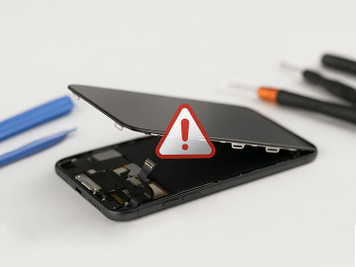
Why Is My Replacement Screen Not Responding? Causes & Fixes
Did you just replace your phone's screen only to find it's unresponsive to touch? Don't panic. This is a common problem faced by both DIY repair enthusiasts and professional technicians. Below, we'll explore possible causes and solutions to get your device running smoothly again.
Common Causes of an Unresponsive Replacement Screen
✅Poor Screen Connection
- Symptoms:
-
- Partial touch response (only certain areas work)
- Flickering display
- Fix:
-
- Power off the phone and reopen it.
- Reseat the display ribbon cable (unplug and reconnect firmly).
✅Defective or Low-Quality Replacement Screen
- Symptoms:
-
- No touch response at all
- Ghost touches (phantom inputs)
- Fix:
-
- Test with another screen (if possible).
- Buy from a reputable seller (avoid cheap eBay/AliExpress screens).
✅Damaged Digitizer (Touch Layer)
- Symptoms:
-
- Display works, but touch doesn’t
- Cracked or visibly damaged screen
- Fix:
-
- Replace the digitizer (or entire screen assembly).
✅Software or Firmware Issues
- Symptoms:
-
- Touch screen works intermittently
- Calibration issues (wrong tap position)
- Fix:
-
- Restart your phone.
- Calibrate the touchscreen (check manufacturer settings).
- Factory reset (last resort, backup data first).
✅Damaged Motherboard or Touch IC
- Symptoms:
-
- The phone won't power on and remains stuck on a black screen.
- The device is completely unresponsive to all button inputs.
- Fix:
-
- Test the replacement screen on another device if possible.
- If it works elsewhere, the issue is with your phone’s internal circuits.
- Seek professional microsoldering repair for touch IC replacement.
✅Improper Installation Pressure
- Symptoms:
-
- Touch works until pressure is applied
- Uneven screen sensitivity
- Fix:
-
- Reinstall the screen, ensuring even pressure across all edges.
- Avoid overtightening screws near the screen flex area, as it can damage the digitizer layer.
Preventing Future Screen Problems
✔ Buy an OEM or high-quality aftermarket screen.
✔ Follow reliable repair guides (iFixit, YouTube).
✔ Handle ribbon cables gently (no bending or forcing).
✔ Test before full reassembling.
An unresponsive replacement screen can be frustrating, but identifying the cause systematically will save you time and money. Whether you’re a repair shop owner or a DIY repairer, following these steps ensures your device is back in action quickly.
Recent Posts
-

30-Second Fix: How to Clean a Clogged Speaker Grill
Your phone's speaker used to be loud and clear. Now it sounds muffled, distorted, or barely audible. …Sep 10, 2026 -
How to Use UV Glue for OLED Screen Replacement: Complete DIY Guide
Replacing an OLED screen is one of the most rewarding smartphone repairs—but it's also one of the ea …Jul 17, 2026 -

Dead Pixels on Phone Screen: Can You Fix Them?
Have you noticed a tiny black dot on your phone screen that never changes color—no matter what app y …Jun 25, 2026