
Dead Pixels on Phone Screen: Can You Fix Them?
Have you noticed a tiny black dot on your phone screen that never changes color—no matter what app you're using? Before you panic and price out a screen replacement, let's figure out exactly what you're dealing with and whether it can be fixed.
The short answer is yes and no—it depends entirely on what type of pixel problem you have. Let's break it down.
First, Identify Your Pixel Problem
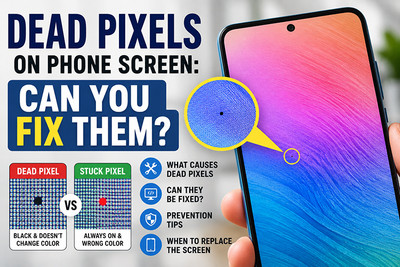
Before you can fix it, you need to know what you're dealing with. There are three distinct types of pixel issues, and only one is fixable at home.
How to tell: Go to a plain white screen (open a blank notes page). Then go to a plain black screen.
- Stuck pixel: Shows up as a tiny colored dot (red, green, blue) against the black screen. This one has hope.
- Dead pixel: Appears as a tiny black speck against the white screen. The transistor is dead, and it's permanent.
- Screen damage: The black spot is bigger than a tiny dot, maybe with jagged edges or a "bruised" appearance. This is physical damage and requires a full screen replacement.
What Causes Dead Pixels?
Several factors can lead to pixel failure.
1. Manufacturing Defects
Even premium displays occasionally leave the factory with pixel defects.
This is why some manufacturers have pixel warranty policies.
2. Physical Impact
Dropping your phone can damage display layers and pixel circuits.
Symptoms often include:
- New dead pixels appearing after a drop
- Clusters of dead pixels
- Screen discoloration
3. Pressure Damage
Keeping your phone in a tight pocket or placing heavy objects on it can damage delicate display components.
4. Heat Exposure
Excessive heat can shorten the lifespan of display components.
Examples include:
- Leaving a phone in a hot car
- Prolonged gaming while overheating
- Charging under blankets or pillows
5. Aging Display Components
Over time, OLED and LCD displays naturally degrade.
Older screens are more likely to develop:
- Dead pixels
- Bright spots
- Color inconsistencies
How to Fix a Stuck Pixel: The 3-Step Method
If you've confirmed you have a stuck pixel, you have a fighting chance. Stuck pixels are "stuck" because they're receiving power but won't change state. The strategy is to "jolt" them back to life.
Method 1: Pixel-Refreshing Software (The Safest)
The most common, least risky method is using a tool that rapidly cycles colors to coax the stuck pixel back to normal. Search for a "dead pixel fixer" app or web-based tool .
How to Do It:
- Download a reputable Pixel Fixer app from your app store (like "Dead Pixel Fixer" or "Stuck Pixel Tool").
- Open the app and run the "Fix It!!" or "Auto Fix" mode.
- Leave it running for at least 10–30 minutes. One user noted success after about 45 minutes, while others left it on for a few hours to see results.
Method 2: The Gentle Pressure Method (Use with Caution)
If software doesn't work, you can try a gentle physical approach.
How to Do It:
- Turn the screen off.
- Use a soft cloth (like a microfiber cloth) folded over your fingertip.
- Apply a very light, direct pressure to the stuck pixel and hold it for a few seconds.
- Release, and check if the pixel is back to normal.
Warning: Pressing too hard or using a sharp object can permanently damage your screen. Proceed at your own risk. This method is not recommended by many manufacturers as it can void your warranty.
Method 3: The "Wait It Out" Approach
Sometimes, stuck pixels fix themselves. This is rare, but turning the screen off and leaving the phone alone for a few hours can let the pixel "rest" and correct itself.
What About Dead Pixels and Cracked Screens?
Dead Pixels: Unfortunately, no. A dead pixel is a hardware failure—the tiny transistor that powers the pixel has broken. No app, gentle massage, or heat gun can revive it. If you have a dead pixel, your only option is to live with it or replace the screen.
Cracked or Bruised Screens: If you have a black spot that looks like a bruise, or a spiderweb of cracks, you have physical damage. This means the liquid crystal or OLED material has been damaged by impact. A repair app won't fix this—you need a professional screen replacement.
How to Prevent Dead Pixels
While not all dead pixels are avoidable, you can reduce the risk.
Best Practices
✅ Use a quality phone case
✅ Avoid excessive heat
✅ Don't place pressure on the screen
✅ Keep your phone away from heavy objects
✅ Handle screen repairs carefully
These habits help maximize display lifespan.
Dead pixels are annoying, but not all pixel issues are permanent.
If you're dealing with a stuck pixel, software-based fixes may restore normal operation.
If it's a true dead pixel, replacement is often the only permanent solution.
The key is identifying the problem correctly before spending money on repairs.
A tiny black dot may not seem like a big deal today—but understanding what's causing it can help you protect your screen and avoid bigger display problems down the road.
Recent Posts
-

30-Second Fix: How to Clean a Clogged Speaker Grill
Your phone's speaker used to be loud and clear. Now it sounds muffled, distorted, or barely audible. …Sep 10, 2026 -
How to Use UV Glue for OLED Screen Replacement: Complete DIY Guide
Replacing an OLED screen is one of the most rewarding smartphone repairs—but it's also one of the ea …Jul 17, 2026 -

Dead Pixels on Phone Screen: Can You Fix Them?
Have you noticed a tiny black dot on your phone screen that never changes color—no matter what app y …Jun 25, 2026