
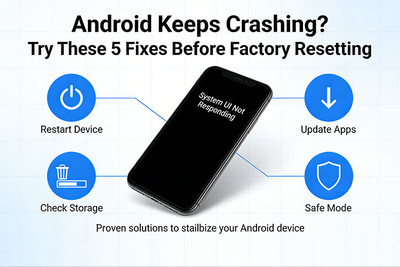
Android Keeps Crashing? Try These 5 Fixes Before Factory Resetting
Your Android phone was running perfectly yesterday. Today, apps are closing for no reason, the screen freezes mid-scroll, and sometimes the whole phone just restarts itself. Before you throw in the towel and wipe everything with a factory reset—which means losing all your data, settings, and hours of setup time—try these five proven fixes first.
In most cases, one of these solutions will stop the crashes without the nuclear option.
Why Android Phones Crash: A Quick Overview
Android crashes happen for three main reasons:
- Software Glitches: Buggy apps, corrupted cache, or system errors.
- Resource Strain: Too many apps running, insufficient storage, or overheating.
- Hardware Issues: Failing battery, loose connections, or component damage.
The good news? The first two causes account for over 80% of random crashes and are completely fixable without losing your data.
Fix #1: Clear the System Cache (The 5-Minute Wonder Fix)
Every Android phone maintains a cache partition—temporary files that help apps load faster. Over time, this cache can become corrupted, leading to random crashes, freezes, and performance issues.
This fix deletes temporary files only. Your photos, apps, and data remain untouched.
How to Clear Cache on Most Android Phones:
1. Power off your phone completely.
2. Boot into Recovery Mode:
-
- Samsung: Hold Volume Up + Power buttons simultaneously.
- Google Pixel: Hold Volume Down + Power.
- OnePlus: Hold Volume Down + Power.
- Generic Android: Try Volume Up + Power or search for your specific model.
3.Use the volume buttons to navigate to "Wipe Cache Partition."
4. Press the power button to select it.
5. Confirm the action, then navigate to "Reboot System Now."
Why this works: The cache partition stores system and app data that can become outdated or corrupted. Wiping it forces your phone to rebuild these files fresh, eliminating corrupted data that causes crashes.
Fix #2: Boot Into Safe Mode (Find the Rogue App)
Sometimes a single misbehaving app is responsible for all your crashing issues. Safe Mode temporarily disables all third-party apps, letting you test if the problem is app-related.
How to Enter Safe Mode:
Method A (Most Android Phones):
- Press and hold the Power button until the power menu appears.
- Long-press "Power Off" until you see a prompt asking to reboot in Safe Mode.
- Tap OK or Restart in Safe Mode.
Method B (If Method A Doesn't Work):
- Power off your phone completely.
- Press and hold Power + Volume Down until it boots.
- Release buttons when you see the logo.
How to Test:
- Use your phone in Safe Mode for 30-60 minutes.
- If crashes stop: A third-party app is causing the problem.
- If crashes continue: The issue is system-wide or hardware-related.
To identify the culprit:
- Restart normally (exiting Safe Mode).
- Uninstall recently installed apps one by one, testing after each removal.
- Pay special attention to apps with system access (launchers, battery savers, VPNs).
Fix #3: Free Up Storage Space (The 15% Rule)
Android needs breathing room. When your storage fills up, the system struggles to manage temporary files, update apps, and perform basic operations. Crashes become inevitable.
The 15% Rule:
Keep at least 15% of your total storage free at all times. For a 128GB phone, that's about 20GB of free space.
Quick Storage Cleanup:
- Go to Settings > Storage and check your current usage.
- Delete unused apps: Sort by "Last used" and remove anything untouched in 3+ months.
- Clear downloaded files: Check your Downloads folder for forgotten PDFs, APKs, and documents.
- Offload photos: Use Google Photos to back up and remove local copies.
- Use the Files app: Google's Files app has a "Clean" feature that suggests junk files to delete.
Pro Tip: Apps like WhatsApp and Telegram can accumulate gigabytes of cached photos and videos. Clear app data selectively.
Fix #4: Check for Software Updates (The Obvious One)
Software updates aren't just about new features. They contain critical bug fixes that address known crashing issues.
How to Check:
- Go to Settings > Software Update (or System > System Update on some phones).
- Tap "Download and Install" or "Check for Updates."
- If an update is available, install it.
Why this matters: Manufacturers monitor crash reports. If a widespread issue is identified, they'll release a patch. Skipping updates means living with known bugs.
Fix #5: Clear Individual App Cache & Data (The Targeted Approach)
If crashes happen primarily in specific apps, you don't need to reset your whole phone—just reset those apps.
How to Reset a Single App:
- Go to Settings > Apps (or Apps & Notifications).
- Find and tap the problematic app.
- Tap Storage (or Storage & Cache).
- First, tap "Clear Cache" —this removes temporary files.
- If crashes continue, tap "Clear Data" or "Clear Storage."
⚠️ Warning: "Clear Data" resets the app to its fresh-install state. You'll lose app settings and may need to log in again, but your personal files (photos, documents) remain safe.
Best candidates for this fix:
- Social media apps (Instagram, Facebook, TikTok)
- Browsers (Chrome, Samsung Internet)
- System apps like Camera or Phone
Bonus Fix: The App-by-App Update Check
Sometimes an app crashes because it's out of sync with your Android version.
- Open the Google Play Store.
- Tap your profile icon > "Manage apps & device."
- Tap "Updates available" and update all apps.
- Pay special attention to system apps like Android System WebView, which directly impacts app stability.
When to Factory Reset (The Last Resort)
If you've tried all five fixes and your phone still crashes, a factory reset may be necessary. But first, ask yourself:
| Symptom | Try First | Reset Likely Needed If... |
|---|---|---|
| Random crashes in multiple apps | Clear cache partition | Still crashes after 48 hours |
| Phone freezes and restarts | Boot into Safe Mode | Crashes continue in Safe Mode |
| One specific app keeps crashing | Clear app data | App crashes after fresh install |
| Phone overheats and crashes | Free up storage | Temperature issues persist |
Before You Factory Reset:
- Back up everything: Photos, contacts, messages, app data.
- Note your Google account password: You'll need it after reset.
- Remove your Google account (optional but recommended) to prevent FRP lock.
Pro Tips to Prevent Future Crashes
- Avoid installing too many apps
- Stick to trusted apps from Google Play
- Restart your phone regularly
- Keep software updated
- Monitor storage usage
Small habits can prevent major problems.
Recent Posts
-

30-Second Fix: How to Clean a Clogged Speaker Grill
Your phone's speaker used to be loud and clear. Now it sounds muffled, distorted, or barely audible. …Sep 10, 2026 -

How to Use UV Glue for OLED Screen Replacement: Complete DIY Guide
Replacing an OLED screen is one of the most rewarding smartphone repairs—but it's also one of the ea …Jul 17, 2026 -

Dead Pixels on Phone Screen: Can You Fix Them?
Have you noticed a tiny black dot on your phone screen that never changes color—no matter what app y …Jun 25, 2026