
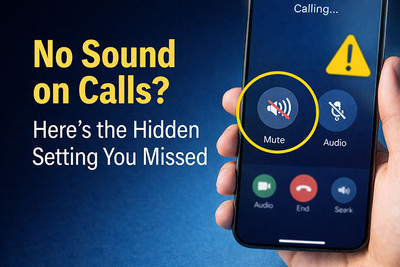
No Sound on Calls? Here’s the Hidden Setting You Missed
Few things are as frustrating as picking up a call only to be met with dead silence. You can see the timer counting, but you can’t hear the other person, and they can't hear you. Before you assume the worst—a costly speaker or microphone repair—there’s a very common, often-overlooked software setting that could be the silent culprit.
In this guide, we’ll uncover that hidden setting and walk you through a complete troubleshooting checklist, from simple software toggles to more serious hardware diagnoses.
The #1 Most Overlooked Fix: The "Call Audio Routing" Setting (Android)
If you’re an Android user, especially on a Samsung, Google Pixel, or OnePlus device, there’s a stealthy setting that can hijack your call audio without warning.
The Problem: Your phone gets confused about where to send the call audio. It might be trying to route sound to a Bluetooth device that’s out of range, or it’s stuck on a speakerphone or headset mode internally.
The Hidden Fix:
- Open your Phone app (the dialer).
- Tap the three-dot menu (⁝) in the top corner and select Settings.
- Look for an option called "Call audio routing," "Audio output," or "Sound on calls."
- Tap it and ensure it is set to "Phone" or "Automatic." If it’s set to "Bluetooth" or "Speaker," change it back.
Why this happens: This setting can automatically switch if you were recently using Bluetooth headphones or your car’s speaker system. When you disconnect, the phone doesn’t always switch back correctly.
Your Complete 8-Step Troubleshooting Checklist
Work through these steps in order. Start with the simple software fixes before moving to hardware.
Step 1: The Basic Reboot
It’s cliché because it works. A simple restart clears out temporary software glitches that could be affecting audio. Hold the power button and tap "Restart." Don’t just turn the screen off and on.
Step 2: Check Your Physical Buttons & Case
- Volume Buttons: During a call, press the Volume Up button. You may have accidentally muted the call or turned the in-call volume down to zero.
- Phone Case: A poorly designed case can block the top earpiece speaker or the bottom microphone. Remove your case and test a call.
Step 3: Disable Bluetooth Completely
Even if you don’t see any Bluetooth devices connected, a glitch can persist. Swipe down from the top of your screen to open Quick Settings and tap the Bluetooth icon to turn it OFF (it should be gray, not blue). Now try a call.
Step 4: Clean the Speaker Grilles (The Gentle Way)
Dust, lint, and pocket debris can physically clog the tiny holes of your earpiece and bottom microphone/speaker.
- Use a soft, clean, dry toothbrush or a new, soft-bristled paintbrush.
- Gently brush across the grilles. Do not use compressed air or sharp objects like pins, which can push debris further in or damage the waterproof mesh.
Step 5: Test Speakerphone & Video/Audio Recording
This is a crucial diagnostic step.
- If speakerphone WORKS: The bottom loudspeaker is fine. The problem is isolated to the top earpiece speaker or its connection.
- If speakerphone DOES NOT work: The issue is likely with the main loudspeaker, audio codec, or a deeper system problem.
- Open your Camera app and record a short video. Play it back. If you can hear sound clearly, your primary microphones are likely working.
Step 6: Check for Software Updates & Safe Mode (Android)
- Update: Go to Settings > Software Update and install any pending OS updates. Bug fixes for audio are common.
- Safe Mode (Android): This boots your phone with all third-party apps disabled. If sound works in Safe Mode, a recently installed app (like a custom equalizer, flashlight app, or game) is causing the conflict. You’ll need to uninstall apps one by one to find the culprit.
Step 7: The Nuclear Option: Reset All Settings
Warning: This does not delete your photos or apps, but it will reset Wi-Fi passwords, Bluetooth pairings, and system preferences to default.
- iPhone: Go to Settings > General > Transfer or Reset iPhone > Reset > Reset All Settings.
- Android: Go to Settings > System > Reset options > Reset Wi-Fi, mobile & Bluetooth.
This clears any corrupted system settings that might be causing the audio to fail.
Step 8: When to Suspect Hardware Failure
If you’ve tried everything above and still have no sound, it’s likely a hardware issue. Common culprits include:
- A failed earpiece speaker: A small, inexpensive part that commonly fails.
- A damaged audio flex cable: Connects the speakers and microphones to the logic board; can come loose or tear during drops.
- Liquid damage: Even minor moisture exposure can corrode audio components over time.
- Logic board (mainboard) failure: Less common, but possible after severe drops or liquid damage.
Hardware or Software? A Quick Diagnostic Table
| Symptom | Likely Cause | Next Action |
| No sound only in normal call mode, but speakerphone works. | Earpiece speaker failure or software routing issue. | Try the hidden "Call Audio Routing" setting first, then consider speaker replacement. |
| No sound from any speaker (earpiece, bottom speaker, media). | Major software glitch or main audio chip/amplifier failure. | Perform a full Reset All Settings. If no fix, seek professional diagnosis. |
| Other person can't hear you, but you can hear them. | Microphone failure or blockage. | Test by recording a video. Clean microphone grilles. |
| Sound is crackly, distorted, or cuts in/out. | Partially damaged speaker, loose connection, or debris in grille. | Clean grilles gently. If persists, needs part replacement. |
Conclusion: Start with the Software, End with Confidence
Most "no sound" issues are not catastrophic hardware failures. They are frustrating software gremlins or simple blockages. Always start with the "Call Audio Routing" setting and the basic reboot—you’d be surprised how often that’s the only fix needed.
Recent Posts
-

30-Second Fix: How to Clean a Clogged Speaker Grill
Your phone's speaker used to be loud and clear. Now it sounds muffled, distorted, or barely audible. …Sep 10, 2026 -

How to Use UV Glue for OLED Screen Replacement: Complete DIY Guide
Replacing an OLED screen is one of the most rewarding smartphone repairs—but it's also one of the ea …Jul 17, 2026 -

Dead Pixels on Phone Screen: Can You Fix Them?
Have you noticed a tiny black dot on your phone screen that never changes color—no matter what app y …Jun 25, 2026