
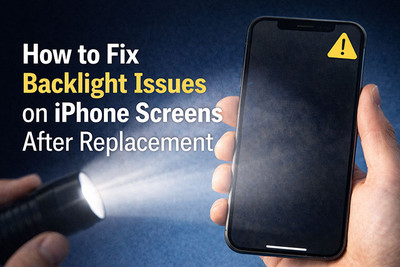
How to Fix Backlight Issues on iPhone Screens After Replacement
You've successfully replaced your iPhone's screen, carefully reconnecting every tiny cable. But when you power it on, instead of a bright, vibrant display, you're met with a ghostly image you can barely see. The screen seems to "work"—you can see faint icons shifting if you tilt it at the perfect angle—but it's impossibly dark. This isn't a dead screen; it's a backlight failure.
This issue is one of the most common and frustrating post-repair problems. It feels catastrophic, but in many cases, the fix is surprisingly simple. This guide will walk you through diagnosing and fixing iPhone backlight issues, separating simple connection faults from serious board-level failures.
What Is a Backlight Issue on iPhone?
The backlight is what makes your screen visible. When it fails, your phone may:
- Appear completely black but still function (you can hear sounds or feel vibrations)
- Be extremely dim
- Flicker or pulse
- Show uneven brightness or shadowing
If the image is there but you can only see it under a flashlight, you’re almost certainly dealing with a backlight failure.
Why Backlight Issues Happen After a Screen Swap
The backlight is a separate system from the main display. It consists of LED strips along the bottom edge of the screen and a dedicated circuit on the logic board. When you replace a screen, you're interacting with the precise points where this delicate, high-voltage system connects.
The three most common causes, in order of likelihood, are:
- A loose or damaged backlight connector or cable (The most common, often DIY-fixable).
- A faulty replacement screen (The backlight LEDs themselves are dead).
- Damage to the backlight circuit on the logic board (The most serious, often requiring microsoldering).
Step 1: The Critical Diagnostic Test
Before you disassemble anything, perform this quick test. It tells you 90% of what you need to know.
- Shine a bright flashlight (your other phone's flashlight works perfectly) directly at the center of the dark iPhone screen in a dark room.
- Tilt the phone at various angles. Can you make out a very faint image of your wallpaper, icons, or the time?
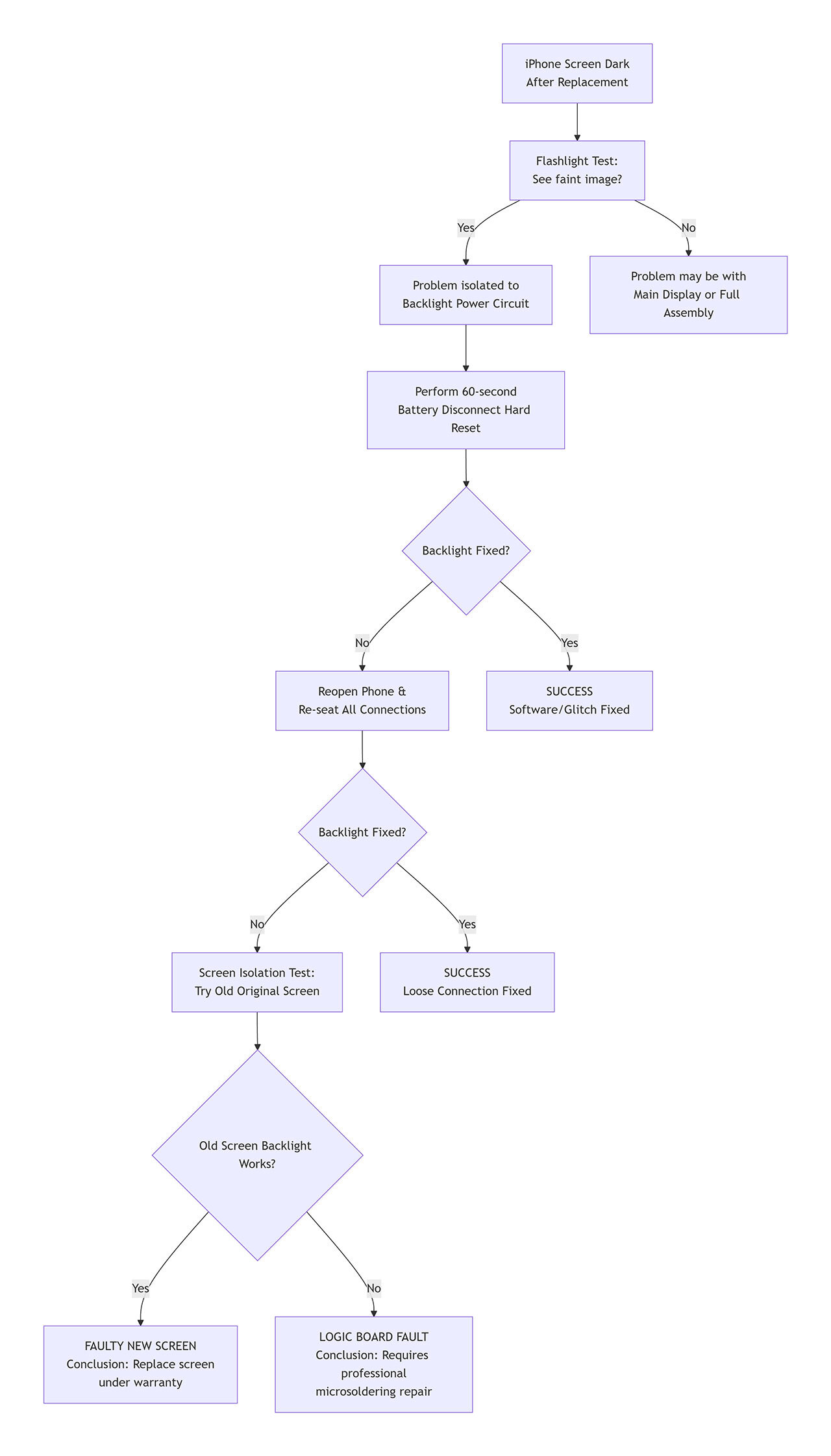
✅ If you CAN see a faint image: Your main display is working! The LCD/OLED panel is receiving a signal. The problem is isolated to the backlight power circuit. This is good news. Proceed to the repair steps below.
❌ If you see NOTHING, just pure black: Your display cable may be completely disconnected, or the new screen itself is fully defective. The issue may be more complex than just the backlight.
The Repair Protocol: A Step-by-Step Guide
Safety & Preparation: Power off the iPhone. Gather your tools: a quality Pentalobe screwdriver, Phillips #000 screwdriver, plastic pry tools, and a suction cup.Work on a clean, uncluttered, well-lit surface.
Phase A: The Connection Re-Seat (Fixes ~70% of Cases)
The most common culprit is that the tiny, multi-pin backlight flex cable is not fully seated or got slightly dislodged during assembly.
- Reopen your iPhone. Carefully remove the display assembly.
- Disconnect the Battery FIRST. This is non-negotiable. The backlight circuit carries a higher voltage, and working on it while powered can cause a short.
- Locate the Backlight Connector. On most modern iPhones, the backlight cable is part of the main display flex assembly. It's a smaller set of pins, separate from the larger digital display connector.
- Inspect and Re-Seat: Gently disconnect the display flex cables. Look at the backlight connector and the socket on the logic board for any obvious debris, bent pins, or discoloration. Use a can of compressed air to gently clean the area. Firmly and evenly reconnect the cables, ensuring they are straight and fully seated.
- Reconnect the battery, power on, and test.
Pro Tip: Often, simply unplugging the battery for 60 seconds (a "hard reset") can clear a temporary fault in the power management IC that controls the backlight. Try this before even reopening the phone.
Phase B: Screen Isolation Test
If re-seating doesn't work, you must determine if the fault lies with the new screen or the phone itself.
- Reconnect your old, original screen (even if it's cracked).
- Power on the phone. Does the old screen's backlight work?
-
- If YES: Your new replacement screen has a faulty backlight. The component is defective. Contact your supplier for a warranty replacement.
- If NO: The problem is within your iPhone's logic board. The backlight circuit has been damaged. Proceed to Phase C.
Phase C: Logic Board Diagnostics (Advanced)
A persistent backlight failure with a known-good screen points to a board-level issue. The two most common failures are:
- Blown Backlight Filter (Fuses): Tiny components on the board that sacrifice themselves to protect the main chip from a voltage spike. This is often the result of a tiny short during screen installation.
- Damaged Backlight IC (Power Management): The chip that regulates power to the LEDs can fail.
This requires microsoldering. You will need:
- A quality digital multimeter to check for diode mode readings on the backlight pins.
- A schematic or boardview for your specific iPhone model.
- A fine-tip soldering iron, hot air rework station, flux, and replacement components.
Warning: This is advanced, precision work. A single mistake can permanently damage the logic board. For most, this is the point to consult a professional.
Backlight Issue Diagnostic Flowchart
Critical Prevention Tips for Your Next Repair
- Disconnect the Battery FIRST, Reconnect it LAST. This is the golden rule of electronics repair.
- Never Use Metal Tools Near Connectors: A single slip can short pins and blow the backlight fuses.
- Check Screen Compatibility: Some aftermarket screens, especially for older models, have known compatibility issues that can affect the backlight circuit.
- Handle the Logic Board Connector with Care: The socket is fragile. Insert cables straight on, without angling them.
When to Seek a Professional
You should contact a professional microsoldering repair shop if:
- The Screen Isolation Test confirms the issue is with your iPhone's logic board.
- You see physical damage to the logic board connectors.
- You are not equipped or comfortable with using a multimeter and soldering equipment.
A skilled technician can often replace a blown backlight filter in under 30 minutes, which is far more economical than replacing the entire logic board or phone.
Recent Posts
-
How to Use UV Glue for OLED Screen Replacement: Complete DIY Guide
Replacing an OLED screen is one of the most rewarding smartphone repairs—but it's also one of the ea …Jul 17, 2026 -

Dead Pixels on Phone Screen: Can You Fix Them?
Have you noticed a tiny black dot on your phone screen that never changes color—no matter what app y …Jun 25, 2026 -
Why Fast Charging Isn’t Always Good for Your Phone
You've seen the ads. "50% charge in 15 minutes!" "Full battery in under an hour!" "Charge faster tha …May 29, 2026