
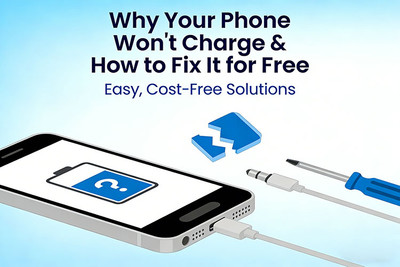
Why Your Phone Won’t Charge & How to Fix It for Free
Your phone's battery is at 5%. You plug it in, breathe a sigh of relief... and nothing happens. No charging icon. No vibration. Just silence and a slowly dying screen. Panic sets in.
Before you rush to Google for a repair shop or start shopping for a new phone, take a deep breath. The vast majority of charging issues can be resolved in minutes, completely free.
This guide walks you through 10 proven fixes—from the embarrassingly simple to the surprisingly clever—that cost absolutely nothing. Let's bring your phone back to life.
10 Completely Free Fixes to Try Right Now
Fix #1: Check the Obvious
This sounds absurdly simple, but you'd be amazed how many "broken" phones are fixed by this step.
- Is the outlet working? Plug another device (a lamp, a hairdryer) into the same outlet to confirm it has power.
- Is the cable fully inserted? Push the charging cable firmly into both the phone and the power adapter. You should feel a solid click.
- Is the power adapter securely plugged into the wall? Sometimes adapters wiggle loose.
Fix #2: Try a Different Cable
Charging cables are consumables. They fray internally, bend at the connector, and eventually die. The cable that worked yesterday may be dead today.
- Borrow a friend's cable or use one from another device.
- Try the cable on another device. If it doesn't charge that device either, the cable is dead.
Pro Tip: If a cable charges slowly or only works at a certain angle, it's already failing. Replace it soon.
Fix #3: Try a Different Power Adapter
The wall adapter (the brick) can also fail. The internal components can burn out, especially if you've ever used it with a damaged cable.
- Use a friend's adapter or swap with another device in your home.
- Plug your cable into a computer's USB port. If it charges there, your wall adapter is the problem.
Fix #4: The Toothpick Trick
This is the #1 reason phones stop charging, and it's completely free to fix. Pocket lint, dust, and debris pack into the bottom of your charging port over time. It gets compressed every time you plug in, eventually creating a physical barrier that prevents the cable from connecting fully.
What You'll Need: A wooden toothpick (not metal, not a paperclip).
The Method:
- Power off your phone.
- Take a wooden toothpick and gently insert it into the charging port.
- Carefully scrape the bottom and sides of the port, working the compacted lint loose.
- Blow gently or use compressed air to remove the debris.
- Try charging again.
CRITICAL WARNING:Do not use metal. Do not scrape aggressively. You can damage the delicate pins inside the port. Be gentle and patien
Fix #5: Restart Your Phone
A simple restart clears temporary software glitches that can interfere with charging detection.
- For most phones: Hold the power button and select "Restart."
- For iPhones without a home button: Press and release Volume Up, press and release Volume Down, then hold the Side button until the Apple logo appears.
Fix #6: Check for "Slow Charger" Warnings
If your phone detects that the charger isn't providing enough power, it may refuse to charge at all, or charge extremely slowly.
- Use the original charger that came with your phone whenever possible.
- Avoid charging from car USB ports or cheap convenience store cables, which often don't deliver sufficient power.
Fix #7: Inspect for Corrosion or Water Damage
If your phone has been near water, sweat, or high humidity, the charging port may have corrosion.
- Shine a flashlight into the port. Look for any white, green, or crusty residue.
- If you see corrosion, your best bet is to place the phone in a dry, airy place for 24-48 hours. Silica gel packets help. Do NOT use rice.
- Warning: Corrosion often requires professional cleaning or port replacement.
Fix #8: Check Temperature
Lithium-ion batteries have a safety feature: they refuse to charge if they're outside a safe temperature range.
- If your phone is extremely hot: Move it to a cool, shaded area and wait 30 minutes.
- If your phone is freezing cold: Let it warm up to room temperature gradually.
- Try charging again once it's at a normal temperature.
Fix #9: Try Wireless Charging (If Supported)
This is a brilliant diagnostic tool. If your phone supports wireless charging:
- Place it on a wireless charging pad.
- If it charges wirelessly: Your charging port hardware is likely fine. The issue is either the port itself (debris, damage) or the cable/adapter you were using.
- If it doesn't charge wirelessly: The problem may be with the battery or internal charging circuitry.
Fix #10: Boot into Recovery Mode (The Software Deep Clean)
A deeply glitched operating system can sometimes prevent charging detection.
For iPhone:
- Connect your iPhone to a computer with a USB cable.
- Press and quickly release Volume Up, then Volume Down.
- Hold the Side button until you see the recovery mode screen (computer icon).
- Follow on-screen prompts to restore (this erases data, so use as last resort).
For Android:
- Power off completely.
- Hold Volume Up + Power buttons simultaneously.
- Use volume buttons to navigate to "Recovery Mode" and select with power button.
- Select "Restart" or "Wipe Cache Partition" (does not delete personal data).
Quick Diagnostic Chart
| Symptom | Most Likely Cause | Free Fix to Try First |
|---|---|---|
| Nothing happens when plugged in | Dead cable or packed lint | Try a different cable, then clean port |
| Charges only at a certain angle | Damaged cable or loose port | Try a new cable; if persists, port may need repair |
| "Charging" but battery % drops | Weak charger or bad cable | Use original charger, check cable |
| Works with some cables but not others | Failing port or incompatible cable | Clean port thoroughly |
| Works wirelessly but not wired | Packed lint or damaged port | Clean port with toothpick |
| Phone is very hot/cold | Temperature safety lock | Let phone reach room temperature |
When Free Fixes Fail: What It Probably Means
If you've tried all 10 fixes and your phone still won't charge, the issue is likely hardware-related:
- Broken Charging Port: The physical port on the phone is damaged. This requires replacement.
- Dead Battery: The battery itself has reached the end of its life. Replacement cost varies by model.
- Failed Charging IC (Motherboard Issue): A chip on the logic board that manages power delivery has failed. This requires professional microsoldering.
- Water Damage Corrosion: Internal corrosion has damaged the charging circuit.
Prevent Charging Problems in the Future
To keep your phone charging properly:
✔ Clean your charging port monthly
✔ Use high-quality cables
✔ Avoid bending cables sharply
✔ Don’t use your phone heavily while charging
✔ Keep devices away from moisture
Small habits can dramatically extend the life of your charging port and battery.
Recent Posts
-

Why Your Phone Won’t Charge & How to Fix It for Free
Your phone's battery is at 5%. You plug it in, breathe a sigh of relief... and nothing happens. No c …Mar 16, 2026 -
Why Face ID Fails After a Screen Replacement & How to Fix It
You’ve just replaced your iPhone’s cracked screen. The display looks flawless, colors are vibrant, a …Feb 04, 2026 -
How to Fix Backlight Issues on iPhone Screens After Replacement
You've successfully replaced your iPhone's screen, carefully reconnecting every tiny cable. But when …Jan 27, 2026