
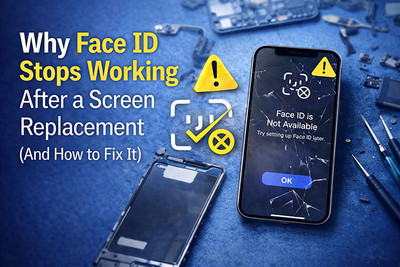
Why Face ID Fails After a Screen Replacement & How to Fix It
You’ve just replaced your iPhone’s cracked screen. The display looks flawless, colors are vibrant, and touch response is perfect. But when you go to unlock it, you’re met with a frustrating message: “Face ID Not Available” or an endless attempt to recognize you. This is one of the most common—and most disheartening—post-repair issues.
Why does a seemingly perfect screen replacement break a feature as sophisticated as Face ID? The answer lies in the delicate, microscopic relationship between your screen and a suite of hidden sensors. This isn't just a software glitch; it’s usually a physical or calibration issue.
This guide will demystify the true causes, separate myths from facts, and provide a clear path to restoring your phone's most personal security feature.
How Face ID Works: It's Not Just a "Camera"
First, a critical distinction: Face ID is not just the front camera. It’s a complex system Apple calls the TrueDepth camera system. This array, housed in the notch or Dynamic Island, includes:
- Flood Illuminator: Casts invisible infrared dots on your face.
- Dot Projector: Projects over 30,000 of those IR dots to create a precise 3D map.
- Infrared Camera: Reads the pattern of dots.
- Front Camera: Used for standard photos and auxiliary data.
When you replace the screen, you are physically separating this entire sensor array from the device and then reconnecting it. Any misstep in this process can disrupt the system.
Diagnosis Guide: What Actually Causes Face ID Failure?
Use this table to match your specific symptom with its most likely cause:
| Symptom & Error Message | Most Likely Cause | Technical Explanation |
|---|---|---|
| "Face ID Not Available" or "Face ID has been disabled" | Disconnected or damaged flex cable for the TrueDepth array. | The phone detects a complete break in communication with one or more sensors. |
| Face ID "set up" option is grayed out. | Damaged or replaced proximity/ambient light sensor. | These secondary sensors are paired to the logic board. A mismatch triggers a lockdown. |
| It tries to scan but fails to recognize you. | Minor misalignment of the TrueDepth array. | A shift of even a fraction of a millimeter skews the 3D map it creates, making it invalid. |
| Works intermittently or only in perfect light. | Dust or debris on the sensors under the screen. | Obstruction blocks the infrared pattern, preventing a clean reading. |
| Front camera works, but Face ID doesn't. | Failure of a single component (e.g., Dot Projector) within the array. | Confirms the main flex cable is connected, but a specialized sensor is faulty. |
The Fix-It-Yourself Protocol: Step-by-Step
Extreme Caution:The TrueDepth array isthe most fragile part of an iPhone repair. One mistake can permanently destroy Face ID. Proceed only if you are confident and accept the risk.
Step 1: The Non-Invasive Reboot & Check
- Force Restart Your iPhone. This clears temporary system glitches.
- Ensure your face is clearly visible to the sensors, with no case or screen protector obstruction.
- Go to Settings > Face ID & Passcode and try to "Reset Face ID." If you can't, the issue is hardware.
Step 2: The Internal Inspection (Re-Opening the Phone)
- Power down and carefully reopen the phone. Use proper tools.
- DISCONNECT THE BATTERY IMMEDIATELY. This is non-negotiable to prevent short circuits.
- Locate the TrueDepth Array Flex Cables. These are two or three thin cables (depending on model) that route from the sensors down the right side of the display assembly to the logic board.
- The Critical Inspection:
-
- Are they fully seated? Gently unplug and re-seat every connector related to the front sensors.
- Is there any visible damage? Look for pinches, tears, or crimps along the cables, especially where they bend near the speaker bracket.
- Is the array aligned? The sensor housing must sit perfectly in its cutout without being crooked or propped up.
Step 3: The "Known-Good Screen" Test
This is the definitive test to rule out a faulty part.
- Temporarily reconnect your original, broken screen (if the front glass is shattered but the sensors are intact, handle with extreme care).
- Reconnect the battery and power on.
- Does Face ID work with the old screen?
-
- If YES: Your new screen assembly has a problem. Either its sensor flex cables are defective, or the sensors were swapped incorrectly.
- If NO: The issue lies with your iPhone's logic board or the TrueDepth array itself, likely damaged during the initial screen removal.
The Permanently Fatal Error: What You Can't Fix at Home
Apple intentionally designed parts of this system to be inextricably paired to the original logic board for security. This means:
- The Dot Projector is uniquely paired. If this specific component is damaged or replaced, Face ID cannot be restored except by Apple, and often only with a whole-unit replacement.
- Serialization Mismatch: On newer models (iPhone 12 and later), the screen itself is serialized. If not properly calibrated with Apple's proprietary software, it can cause warnings and potentially affect sensor communication, though this is less common for Face ID failure than for True Tone.
This is why the #1 cause of permanent Face ID loss is attempting to transfer the sensor array from an old screen to a new one without exquisite, professional-grade skill and tools.
When to Absolutely Seek a Professional
You need a microsoldering or highly specialized repair technician if:
- You see physical damage to the tiny sensors or their flex cables.
- The "Known-Good Screen" Test confirms the issue is with your phone's original components.
- You get persistent hardware error messages.
- You accidentally damaged the array while separating it from the old screen.
A top-tier professional may be able to repair a damaged flex cable or, in rare cases, transplant a Dot Projector from a donor board with specialized equipment—but there are no guarantees.
How to Prevent This in Your Next Repair
- Choose the Right Part: Buy a premium screen assembly that includes a pre-installed, genuine TrueDepth sensor array. This is more expensive but eliminates the need for the risky transfer process.
- Never Attempt "Sensor Transfer" as a Beginner: Moving the sensors is a professional-only procedure. If your screen doesn't come with them, reconsider the repair.
- Use the Correct Tools & Frame: When opening the phone, use a dedicated screen-opening jig and fixture to apply even heat and pressure, minimizing stress on the sensor area.
- Document with Photos: Before disconnecting anything, take high-resolution photos of the original sensor placement and cable routing.
Face ID failing after a screen replacement is frustrating—but it’s rarely mysterious. In most cases, the issue is caused by flex cable damage, improper component transfer, screen incompatibility, or sensor obstruction.
With careful installation, high-quality parts, and proper handling, Face ID can—and should—continue working perfectly after screen replacement.
Recent Posts
-

30-Second Fix: How to Clean a Clogged Speaker Grill
Your phone's speaker used to be loud and clear. Now it sounds muffled, distorted, or barely audible. …Sep 10, 2026 -
How to Use UV Glue for OLED Screen Replacement: Complete DIY Guide
Replacing an OLED screen is one of the most rewarding smartphone repairs—but it's also one of the ea …Jul 17, 2026 -

Dead Pixels on Phone Screen: Can You Fix Them?
Have you noticed a tiny black dot on your phone screen that never changes color—no matter what app y …Jun 25, 2026